
New OAuth 2.0 Authentication Standard for SharePoint Online Connections
Applies to version: 2025.2.1.348 and above; author: Tomasz Błach
Related documentation
A detailed description of the functionalities mentioned herein and their configuration can be found in the following sections of the WEBCON Help:
Introduction
Due to Microsoft discontinuing support for Basic Authentication (based on username and password) for SharePoint Online connections, OAuth 2.0 integrated with Microsoft Entra ID has been introduced in WEBCON as the authentication mechanism for this connection. This approach provides a high level of security by eliminating the risks associated with traditional username and password-based authentication. Access to SharePoint resources is based on the app-only model, meaning the application has its own identity, independent of individual user accounts.
Why do we use OAuth 2.0?
The adopted standard complies with Microsoft’s current security guidelines described in this article, and provides the following benefits:
- No password storage: Unlike the SharePointOnlineCredentials method, the system does not store or transmit user passwords, eliminating the risk of credential compromise.
- Certificate instead of a password: The use of certificates ensures that only authorized instances of the application can establish a connection.
- Standards compliance: Leveraging Microsoft Entra ID enables full auditability of sign-ins and precise permission management within the organization.
Therefore, for both existing and new SharePoint Online connections, it is necessary to create an application in the Microsoft Entra ID environment in advance. This is because configuring OAuth 2.0 authentication requires providing the Tenant ID, Client ID, and a certificate, all of which are available only within an application registered in Entra ID.
Microsoft Entra ID Environment Configuration
Application registration
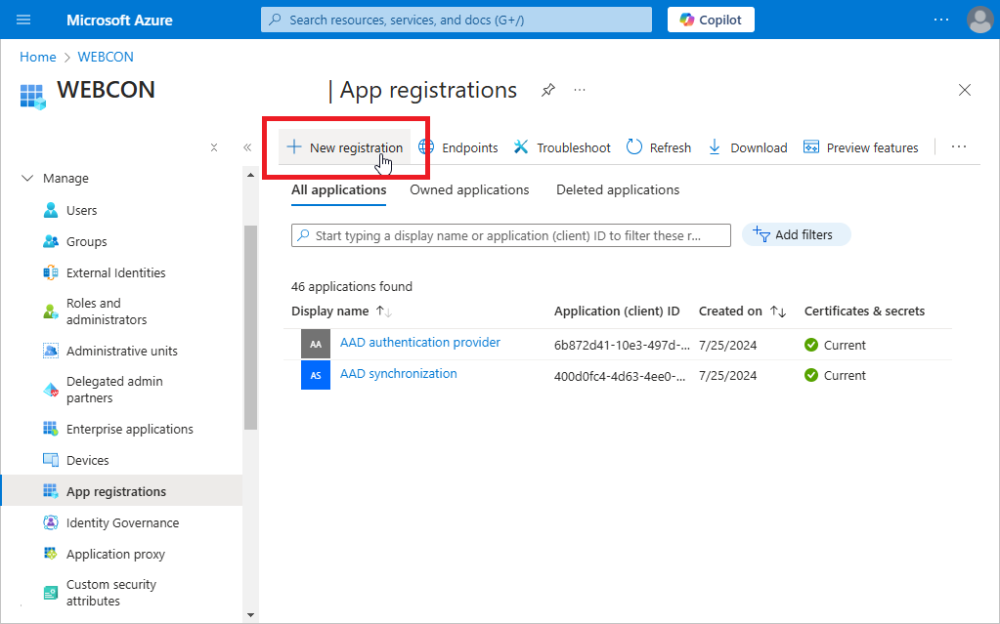
A new application can be registered in the Microsoft Entra ID portal, in the App registrations section.
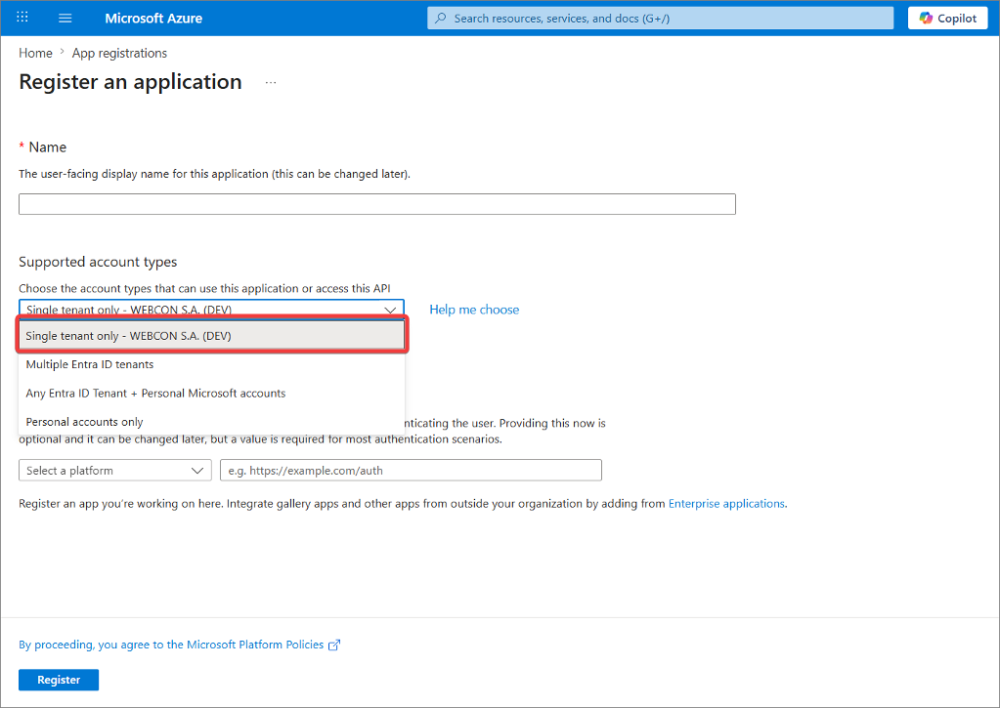
In the Supported account types dropdown, it is recommended to select Single tenant only.
Configuring certificate-based application authentication
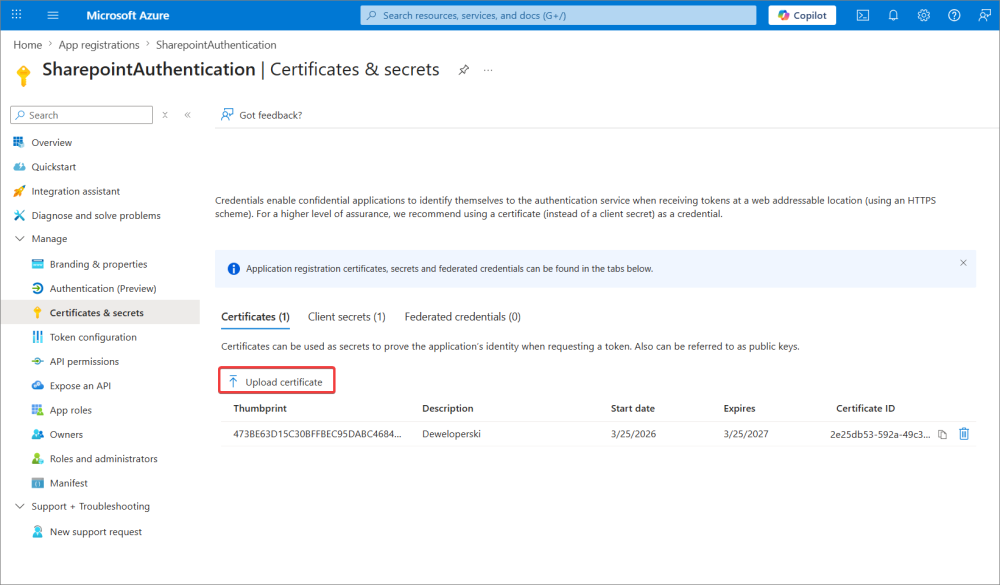
In the application settings, go to the Certificates & secrets section and, under the Certificates tab, select Upload certificate.
IMPORTANT: Only certificates containing a public key can be uploaded to the Entra ID portal.
Granting API permissions to the application
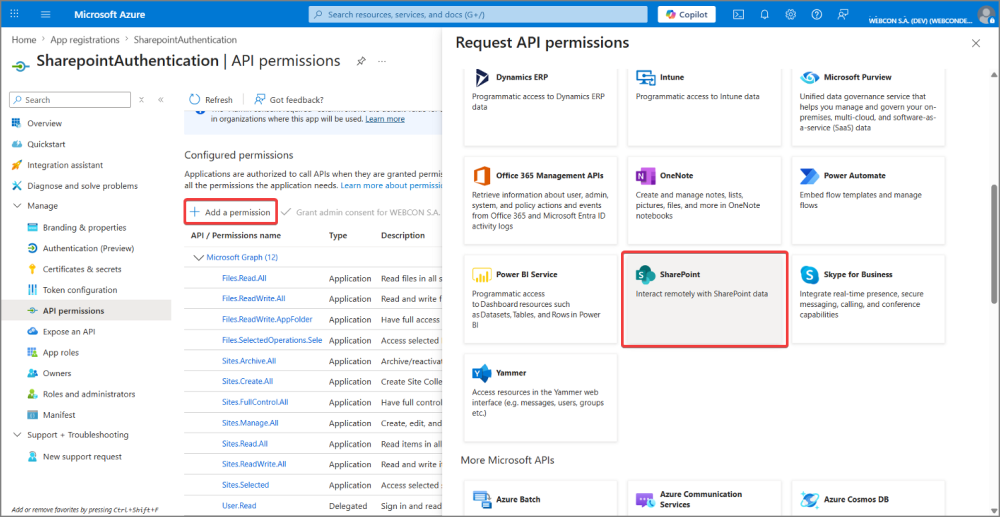
Next, configure the permissions so that the application is granted access to SharePoint resources. To do this, in the API permissions section, select Add a permission and then choose the SharePoint tile.
Below is a basic set of permissions along with a brief description:
| Permission name | Requires Admin Consent? | Description |
|---|---|---|
| Sites.Selected | YES | Recommended. Allows the application to access only specific, selected SharePoint sites (requires additional configuration to indicate the sites). |
| Sites.Read.All | YES | Allows the application to read content across all SharePoint sites within the organization. |
| Sites.ReadWrite.All | YES | Allows the application to read and write (edit/delete) files across all SharePoint sites. |
| Sites.FullControl.All | YES | Provides full control over all sites (including permission management). Use only as a last resort. |
Configuring the connection in WEBCON Designer Studio
In Designer Studio, go to the Data sources → Connections → SharePoint Site Collection tab and, when configuring a new connection, select OAuth 2.0 from the Credentials dropdown. Then provide the technical details generated during the application registration in the Microsoft Entra ID portal.
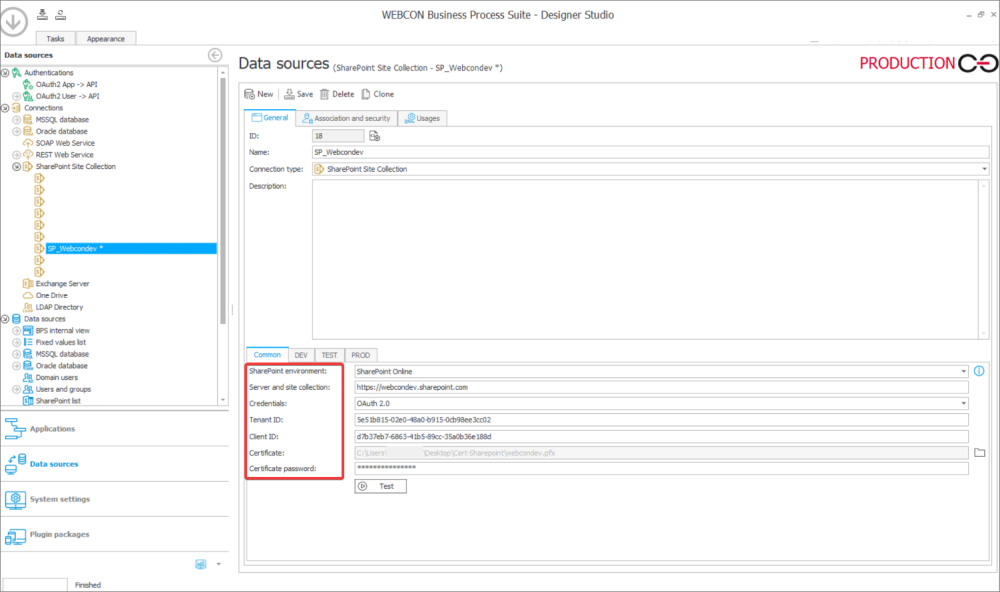
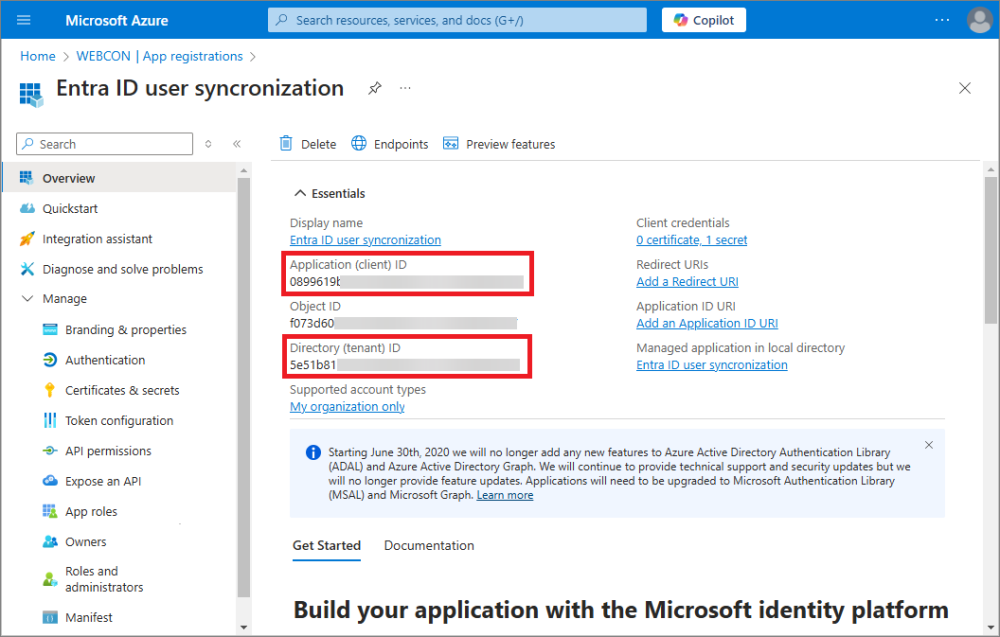
It is worth noting that the Tenant ID and Client ID should be copied from the Overview section in the Entra ID portal, specifically from the Application (client) ID and Directory (tenant) ID fields.
Summary
The presented approach ensures a secure integration with SharePoint Online that complies with Microsoft standards. Proper configuration of the application in Microsoft Entra ID, along with the appropriate selection of permissions, is essential for the stable and reliable operation of this connection in the WEBCON environment.

+48 12 443 13 90