
More Room to Build: Multiple Windows, Full-View Focus
More Room to Build: Multiple Windows, Full-View Focus
Great ergonomics isn't just about a cleaner interface. It's about having the right tools and information in front of you, especially when one seemingly simple change affects several parts of an application.
One Change. Several Moving Parts.
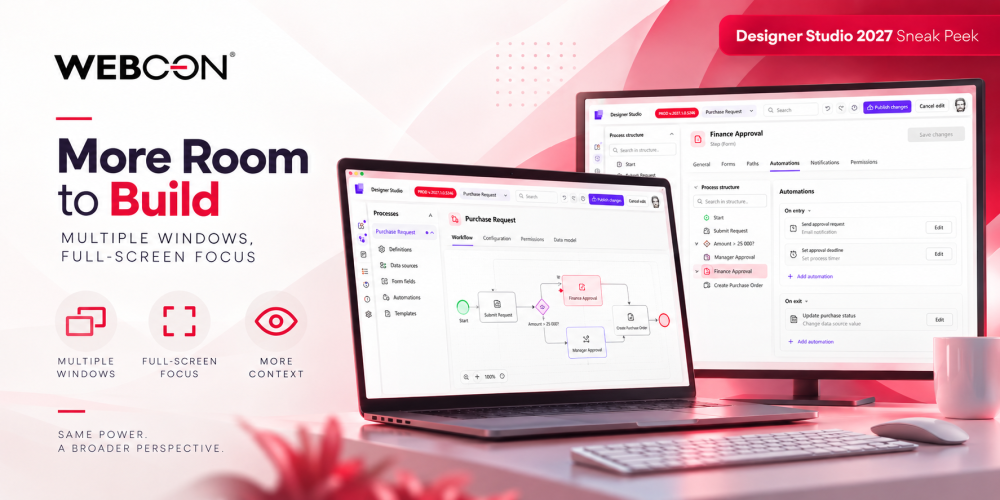
Meet Anna. Finance has introduced a new requirement: purchase requests exceeding $25,000 must go through an additional approval. To implement it, Anna needs to update the workflow, check form fields, configure approval logic, and adjust notifications. With the new web-based Designer Studio, she can work on these elements side by side instead of navigating back and forth.
Two Screens. One Complete Picture.
Anna keeps the Purchase Request workflow diagram open on her main monitor and uses a separate window on her second screen to work on the Finance Approval step. A spacious, full-page configuration view gives her more room to fine-tune the details without losing sight of the broader process. Now she can fine-tune approval paths, automations, and notifications in a spacious, full-page editor while keeping the entire workflow visible on her other monitor.
Need to verify a form field or data source? Ctrl + click opens it in a separate tab without interrupting her work.
More Space When You Need It
For complex configurations, the full-view editor makes it easier to navigate settings, quickly find what you need, and focus on the details that matter. Smaller adjustments? The contextual side panel remains available.
And when working on a single screen, she can collapse Studio's navigation panel and switch her browser to full-screen mode.
The result? More room for workflow diagrams, forms, and detailed configurations, without unnecessary distractions.
Your Workspace. Your Way.
Whether you're working across multiple monitors or focusing on one complex configuration, the new Designer Studio adapts to your way of working.
Keep the big picture in sight. Give the details the space they deserve.

+48 12 443 13 90