Hi Phil,
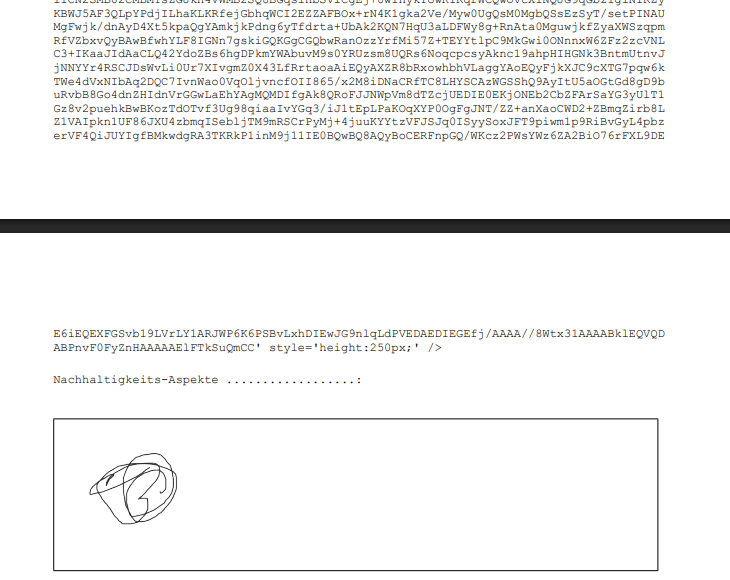
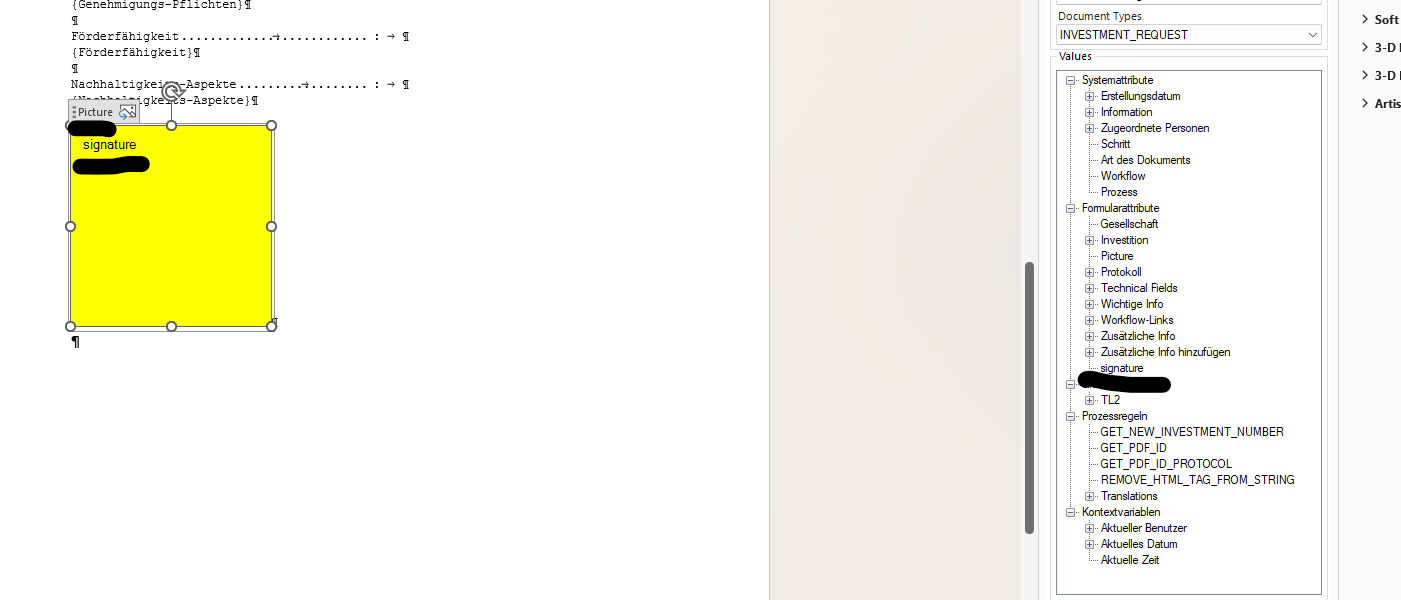
To display the signature instead of the raw code, the field must be mapped to a Picture Content Control in Word.
Here is how it works for me:
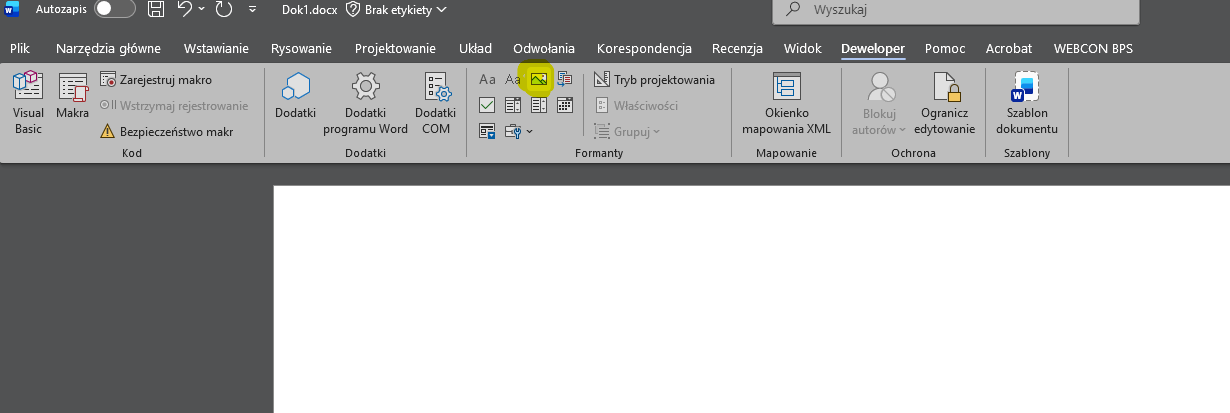
1. Enable the Developer tab in Word (if it's hidden)
Go to File -> Options -> Customize Ribbon.
In the list of Main Tabs on the right side, check the Developer checkbox and save the changes.
2. Insert a Picture Content Control:
Place your cursor in the document where you want the signature to appear.
Go to the Developer tab.
In the "Controls" section, click the Picture Content Control icon (a small icon depicting a landscape). A blank picture frame will appear in the document.
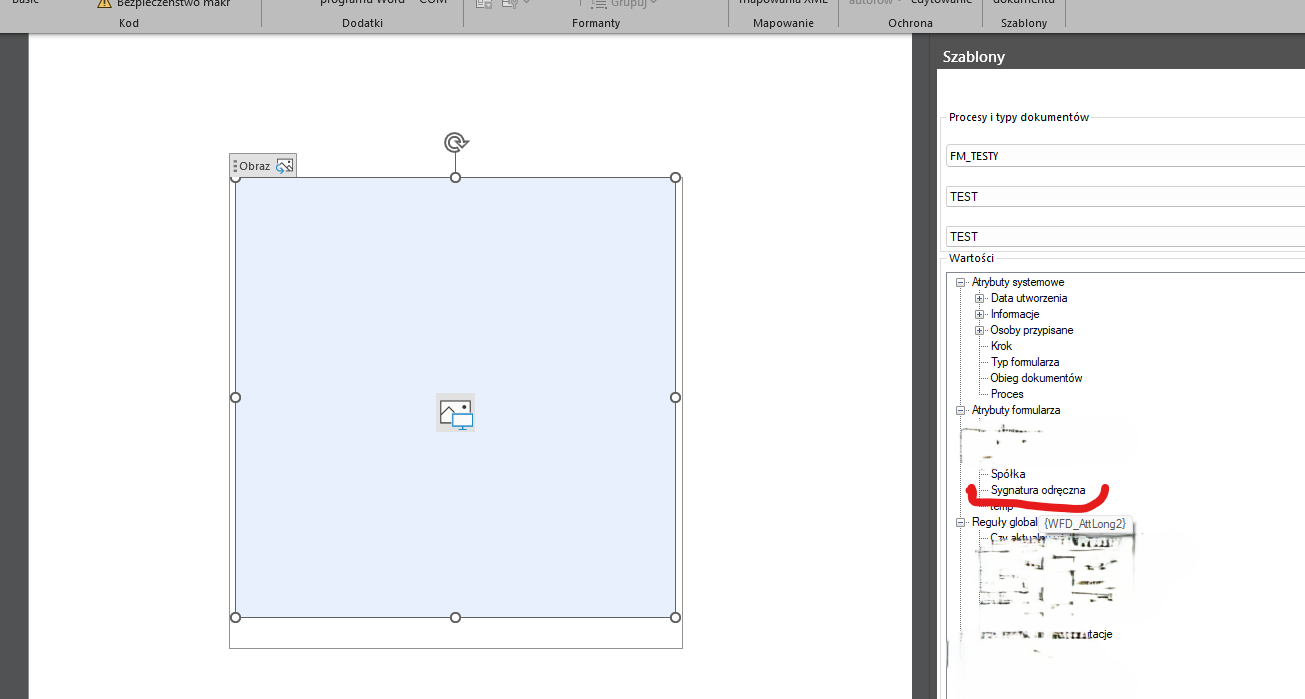
3. Bind the Webcon field to the picture control:
Select the newly inserted picture control in the document (simply click on it).
In the WEBCON BPS plugin side panel, locate the appropriate "Handwritten signature" field.
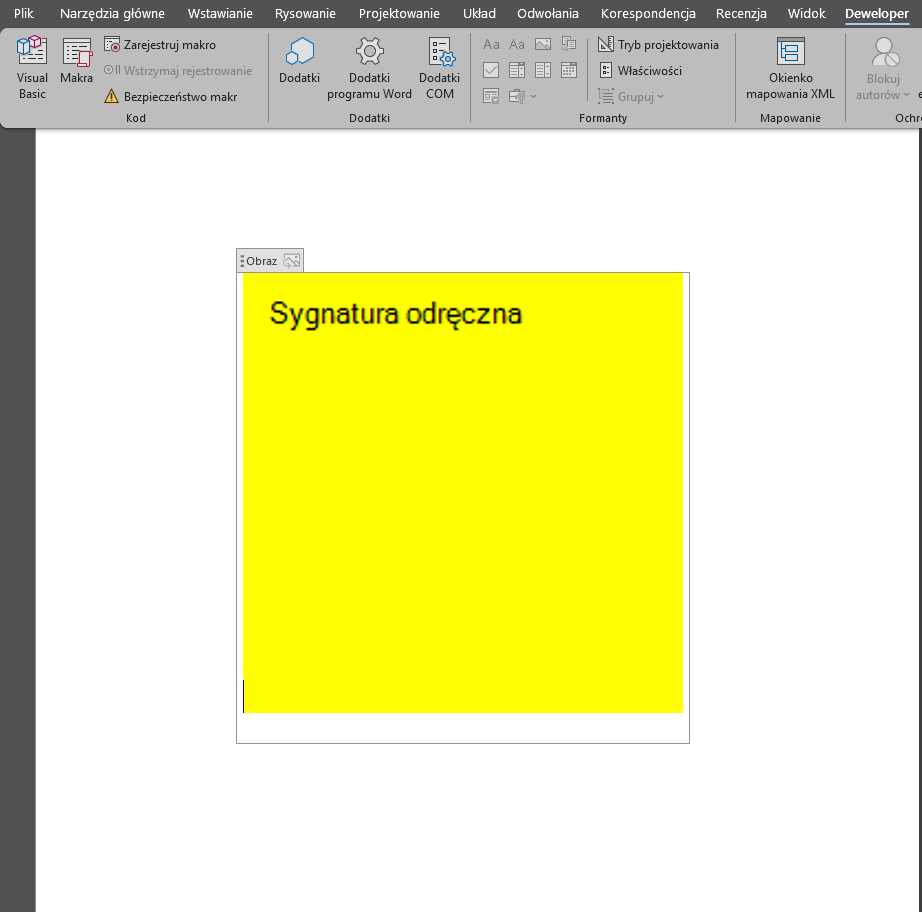
With the control active (selected) in Word, add the field from the Webcon panel (usually, it is enough to double-click it or select the mapping option).


 09.04.2026
 15:14
15:14