
Admin access
Applies to version: 2023 R1 and above; author: Konrad Keppert
Related documentation
A detailed description of the functionalities mentioned herein and their configuration can be found in the following sections of the WEBCON Help:
Introduction
Admin access is an authentication provider introduced in WEBCON BPS 2023. The changelog for this version states that it can be used to complete the configuration of the environment after installation or to log into Designer Studio in case of a failure.
The purpose of this article is to provide a more detailed overview of the Admin access functionality by addressing the following topics:
- What capabilities does it offer?
- What are its limitations?
- How to activate Admin access on environments migrated from older versions?
- How to change the password for the administrative account?
Furthermore, later in this document we discuss the WEBCON BPS System Administrators tool, which was also available in earlier versions of the platform and now plays a role in managing the Admin access functionality.
Admin Access
Basic information
Admin access is the only internal authentication provider in WEBCON BPS, meaning it is available in every environment regardless of infrastructure.
During the installation of WEBCON BPS, in the Admin account step, you must set a password for the administrative account admin@system.bps under which Designer Studio will be launched after authentication using the Admin access provider. This is a built-in WEBCON BPS account, therefore the login cannot be changed.
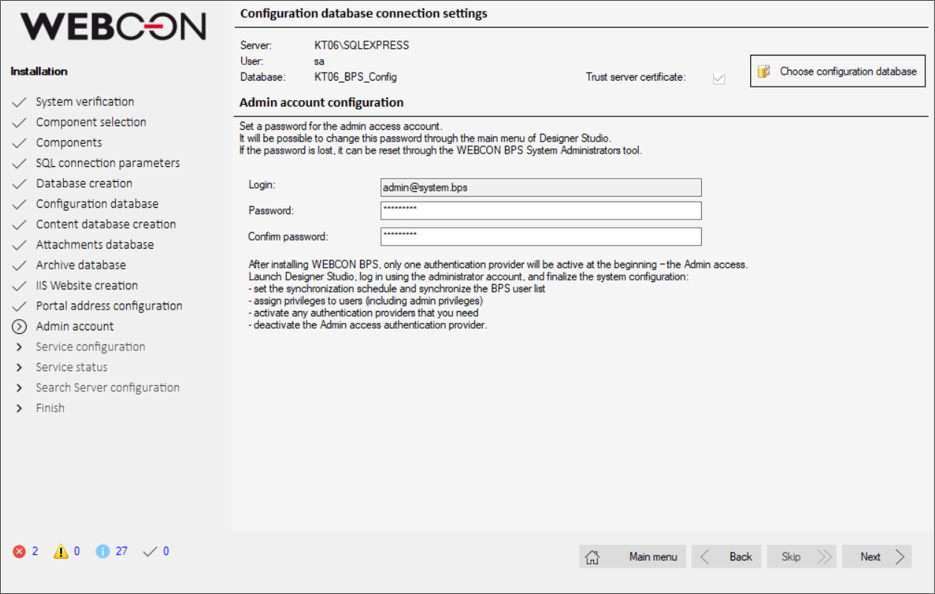
Configuration of the Admin access functionality during a new installation of WEBCON BPS.
During this installation step, you are informed that after installation is complete, Admin access will be the only available authentication provider, and you must use it to log into Designer Studio and finalize the configuration of:
- BPS user synchronization;
- authentication providers;
- global administrator privileges;
- which will enable regular users to work with their domain (named) accounts.
One of the configuration tasks listed in this step is to disable the Admin access provider. This is recommended due to the limited functionality of the admin@system.bps account.
Authentication
If the Admin access provider is active, it will appear on the list of available providers when launching Designer Studio.
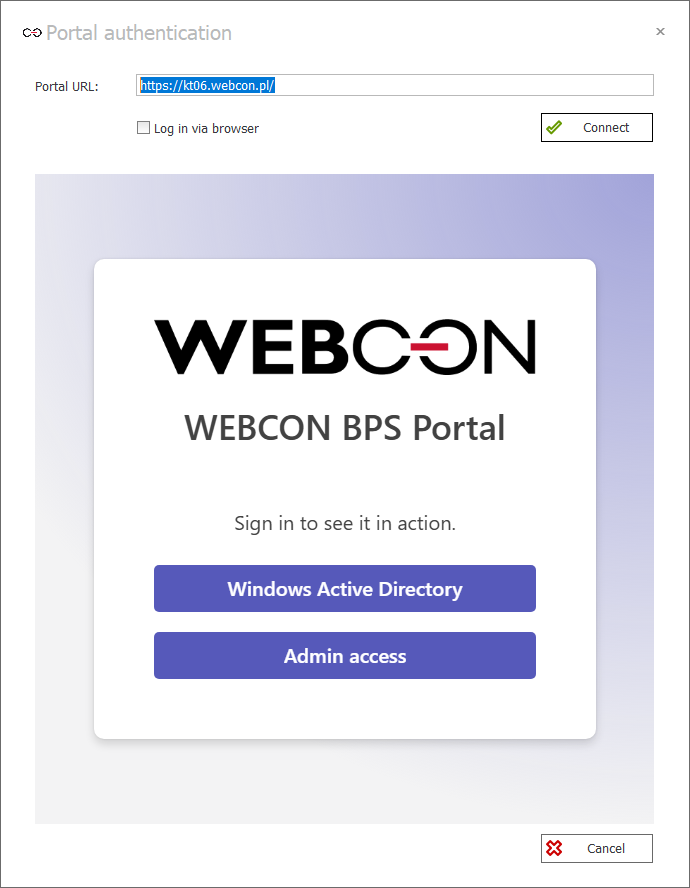
Selecting the authentication provider.
After selecting it, the user will be asked to provide the password for the admin@system.bps account defined during installation.
In new environments where Admin access is the only authentication provider available by default, the person launching Designer Studio will be prompted for this password immediately.
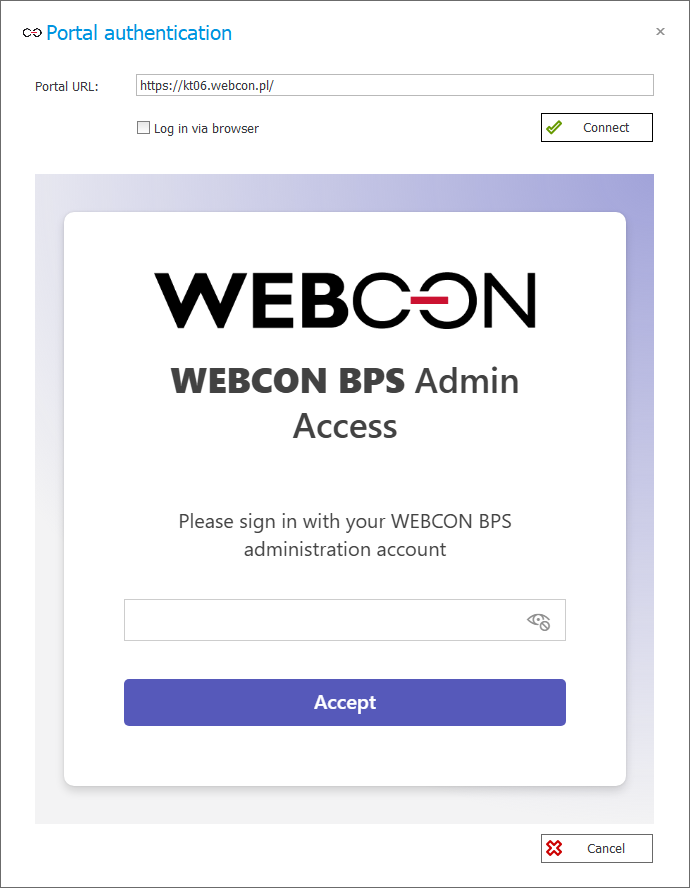
Entering the administrative account password after selecting the Admin access provider.
Admin access operates under the BpsAdmin scheme. This can be confirmed by checking the IIS server logs, where events related to this authentication method are recorded.

Admin access authentication in the IIS logs.
Limitations
As mentioned above, it is considered good practice to disable the Admin access provider once the configuration of a new environment is complete (domain user synchronization → external authentication provider → assigned global privileges).
This is because admin@system.bps cannot modify applications or processes. This may be confusing for people who are not familiar with what Admin access is, yet launch Designer Studio with the intention of developing business applications. As a result, such users may—encouraged by the name—select this authentication provider, only to soon receive information that saving processes is not possible. This can cause unnecessary frustration within the BPS team.
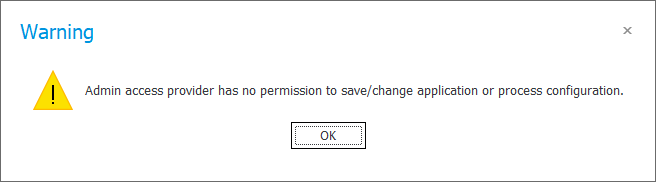
Warning about the lack of ability to edit an application or process by admin@system.bps.
Capabilities
So what functionalities are available within Admin access? Previously, we mentioned the configuration of user synchronization, authentication providers, and global permissions, but the scope of capabilities of the administrative account includes all options located outside the Applications node, namely:
- data sources;
- system configuration (including configuration of form fields and global rules, HotMailBoxes, HotFolders, etc.),
- SDK add-in packages,
- reports.
An advantage of Admin access is that it does not require a running license service. This enables access to Designer Studio in situations where other authentication methods fail, for example:
- during maintenance hours when you need to end them earlier;
- when, as a result of login migration, global system administrators lose their permissions;
- when no employee in the organization has an assigned Designer Studio CAL license and you need to assign one to other user.
Activation
If Admin access is — in accordance with best practices — deactivated in the environment, but there is a need to use it, it can be activated in the following ways:
- in the Tools for application management window of the WEBCON BPS installer, under the Authentication providers node,
- in the WEBCON BPS System Administrators tool (described later in this article).
Any change to the authentication provider configuration requires an IIS application pool restart.
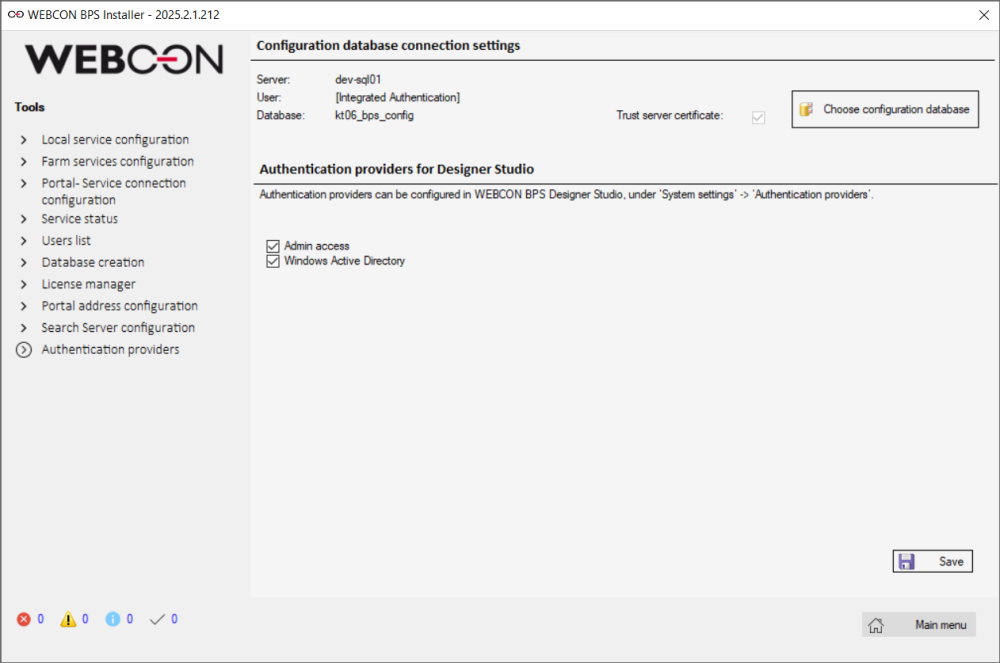
Managing authentication providers using the installer’s administrative tools.
Changing or setting a password
If the environment was upgraded from a version older than 2023 and the password for Admin access has never been set, then after activating this provider in Designer Studio the user will be prompted to set a new password.
Alternatively, the WEBCON BPS System Administrators tool (described below) can be used for this purpose. It is also the only place where the Admin access password can be changed in case it is lost.
WEBCON BPS System Administrators
General information
WEBCON BPS System Administrators is a program that allows for managing global system administrator permissions outside of Designer Studio. With the introduction of Admin access, the tool gained a new application, but it has been available in WEBCON BPS since version 2019.
Location
The tool is available in the directory where WEBCON BPS Designer Studio is installed. Starting from version 2024, its default path is:
"C:Program FilesWEBCONWEBCON BPS Designer StudioWEBCON BPS System AdministratorsWEBCON BPS System Administrators.exe"
In the case of older versions (up to and including 2023), the EXE file was located in the same directory as Designer Studio (not in a subfolder).
Usage
After launching the tool, it is necessary to establish a connection to the configuration database of the environment. To do this, you must select the authentication method, the name or address of the SQL Server, the name of the configuration database, and the credentials required by the chosen authentication method. The account used to establish the connection should have at least read and write permissions to the BPS databases.
Once the connection is successfully established, the Content database selection field becomes active. Here, you must choose one of the content databases associated with the environment. Each content database has its own set of global administrators.
After selecting a database, the Users tab below will display a list of user logins (in BPS ID format) who are currently administrators in the selected content database. Using the buttons on the right side of the window, you can add new logins or modify or remove existing ones.
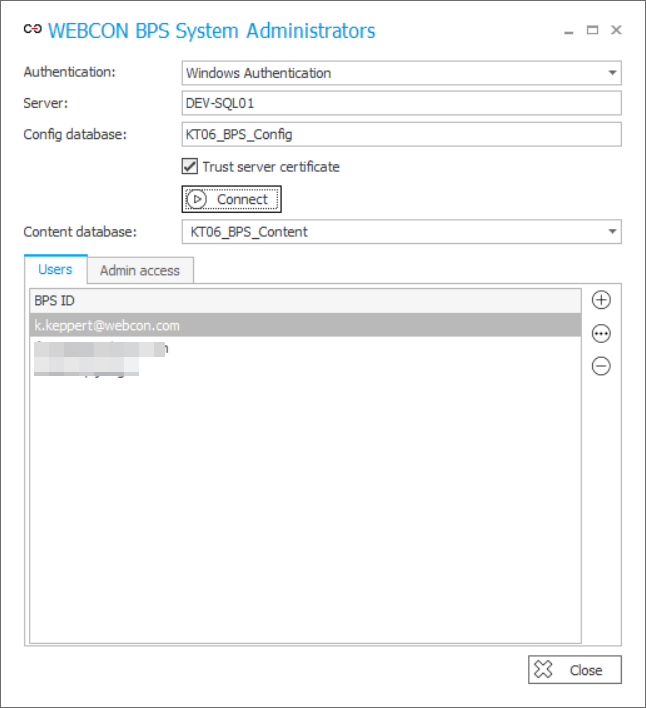
The Users tab in WEBCON BPS System Administrators after a successful connection to the configuration database.
The Admin access tab provides the ability to activate and deactivate this authentication provider, as well as change the password for the administrative account admin@system.bps.
This option can be used if the password is lost or to activate Admin access in environments that were migrated from older versions of the WEBCON BPS platform (before this provider was introduced).
The Admin access configuration is global for the entire WEBCON BPS environment and is not tied to the selected content database.
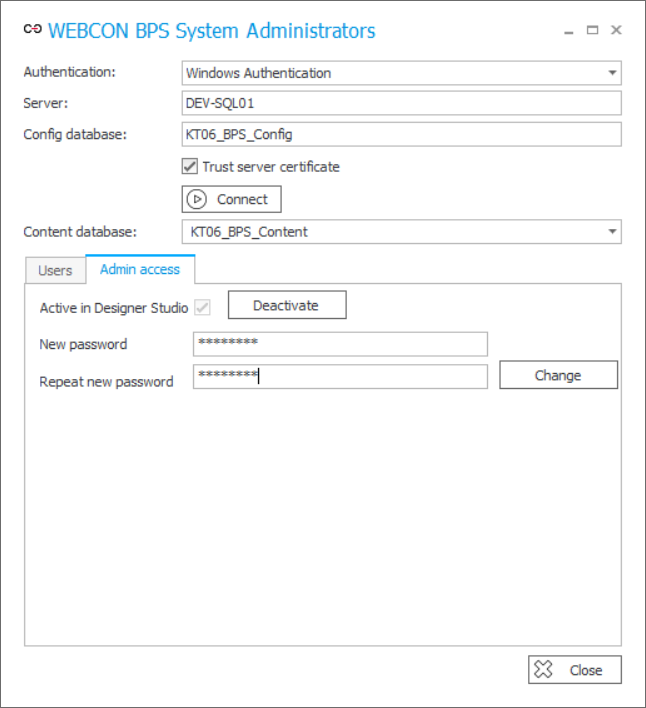
The Admin access tab in WEBCON BPS System Administrators.
Summary
This article presented the role and methods of managing the Admin access functionality, as well as the features of the WEBCON BPS System Administrators tool.
The Admin access authentication provider not only facilitates the completion of configuration of new WEBCON BPS environments but—because it does not require a Designer Studio CAL license—also provides continuous access to the environment in emergency situations.
The WEBCON BPS System Administrators tool not only allows for managing the Admin access functionality but also enables managing the entire list of global system administrator privileges, including in older versions of the system.

+48 12 443 13 90