
AI Concierge – business case
Applies to version: 2026.1.6 and above; author: Lily Adamowicz, Adrian Baszak
Related documentation
A detailed description of the functionalities mentioned herein and their configuration can be found in the following sections of the WEBCON Help:
Getting started
AI Concierge extends the way users interact with the Portal by adding a conversational layer that makes processes easier to access and supports users while they complete forms. The functionality was designed to shorten the path from issuing a command to carrying out a specific operation in the system.
In practice, users no longer need to begin by manually searching through the Portal structure, menus, or process lists. Instead, they can describe what they need in natural language, and AI Concierge will identify the relevant area of the system, guide them to the appropriate process, and then assist them in completing the form. In selected scenarios, the solution can also use data extracted from attachments, reducing the amount of manual data entry required.
This approach improves the overall user experience of working with the Portal, simplifies the execution of everyday tasks, and lowers the entry barrier for people who are not familiar with the system’s detailed structure.
Business case 1: Leave request registration
The first scenario concerns one of the most common administrative tasks: submitting a leave request.
The user begins by clicking the AI Concierge icon in the upper-right corner of the Portal and then enters the command: Register leave.
AI Concierge interprets the command and suggests navigation paths leading directly to the buttons that start leave-related processes or to the applications that contain them. The user is redirected only after clicking the selected button displayed in the conversation window.
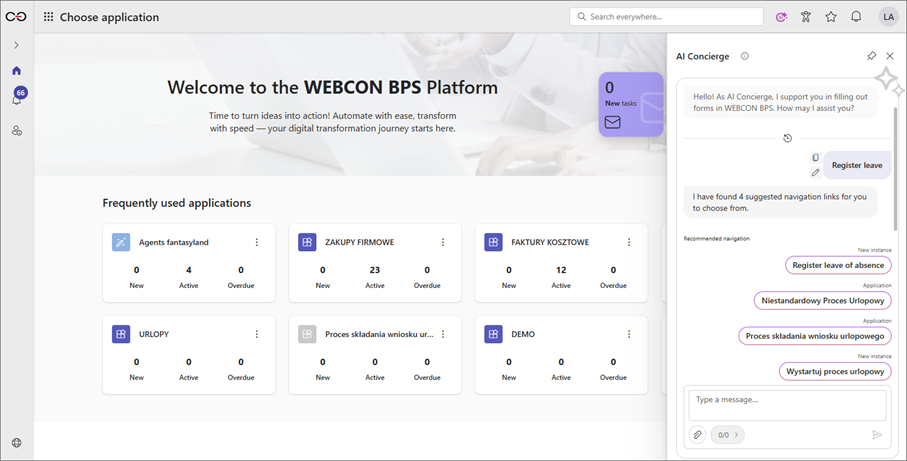
If the user selects the button that starts the leave process in the conversation window, they are redirected straight to the form. At this stage, AI Concierge can also assist with completing it. All the user needs to do is issue a command to register a specific type of leave for selected dates, and the system will populate the form.
In this example, the following command was provided:
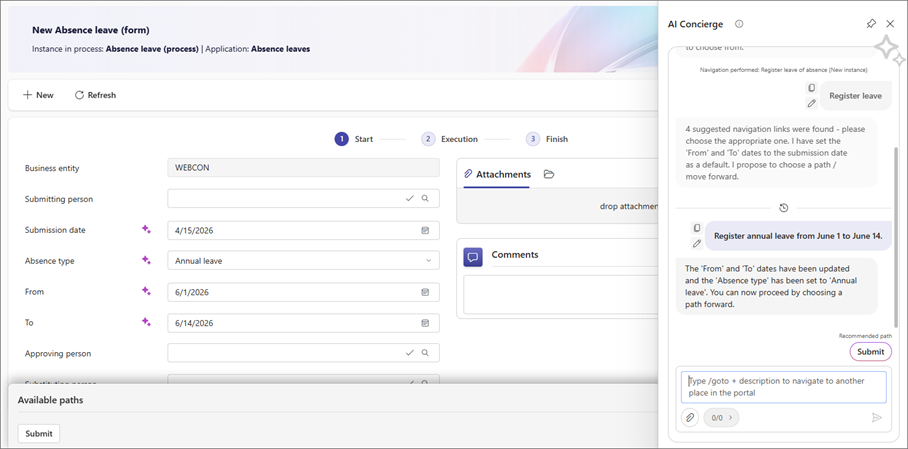
As a result, AI Concierge not only completed the form, but also suggested the next step by displaying the Submit button, allowing the user to move on quickly.
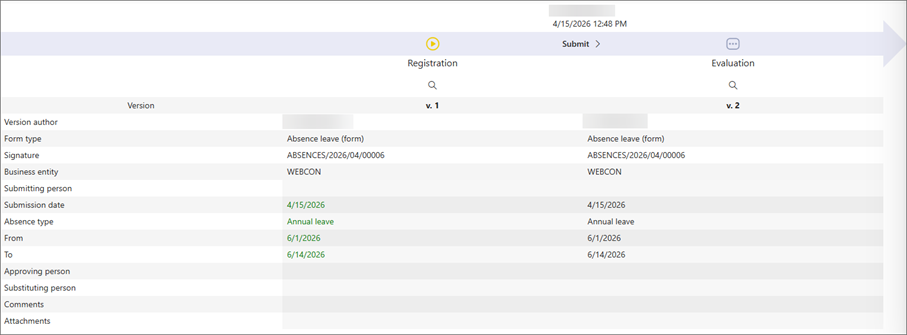
The changes introduced by AI Concierge are marked in the form with a star icon. Once the changes are approved, the use of AI Concierge is not recorded in the form history:
Business case 2: Expense registration based on an attachment
The second scenario demonstrates a broader scope of AI Concierge functionality, covering both form completion and support in working with attachments.
In this case, the user wants to settle an expense related to preparing an industry trade show booth and begins by entering the appropriate command directly in the form and adding an attachment:
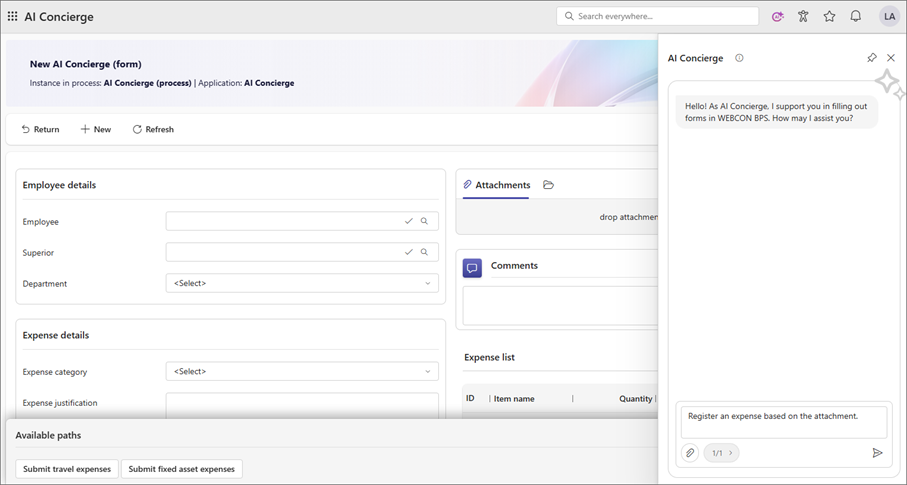
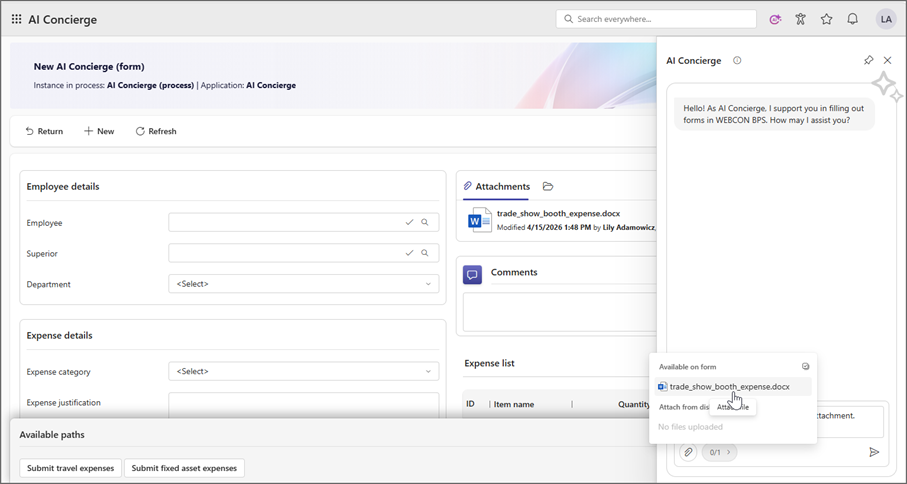
In the example above, the attachment was added directly in the conversation window using the paperclip icon. Another option is to add the attachment to the Attachments section of the form and then select the file using the paperclip icon:
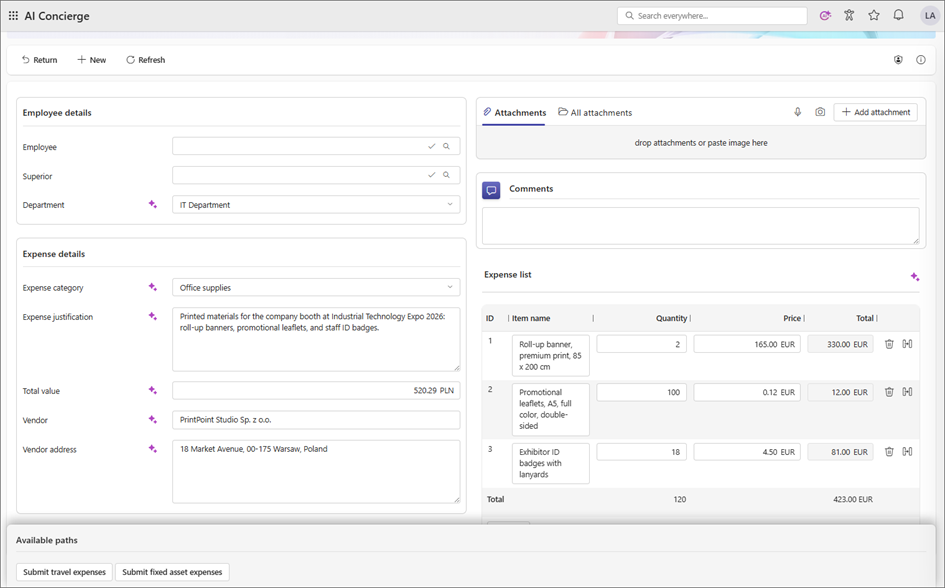
Based on this, AI Concierge completes the form using data extracted from the attachment. The modified form fields are marked with the appropriate icon.
Summary
AI Concierge introduces an intent-based way of working in the Portal. By combining navigation to the right process with form handling and support for attachment-based scenarios, it simplifies the execution of everyday tasks and shortens the path from expressing a need to completing an operation in the system.
The examples of leave request registration and expense registration show that the solution supports both simple administrative processes and scenarios that require working with documents. From a product perspective, this means a more intuitive way of using the Portal. From a business perspective, it translates into faster handling of repetitive tasks, greater user convenience, and better use of the functionalities already available.

+48 12 443 13 90