
AI Process Builder - Business Case
Applies to version 2025 R2 and above; author: Tomasz Błach
Related documentation
A description of the functionalities mentioned herein can be found in the following section of the WEBCON Help:
Introduction
AI Process Builder in WEBCON Designer Desk allows you to generate preliminary prototypes of business processes based on the interpretation of user descriptions in natural language. It enables you to quickly translate concepts or requirements into a preliminary workflow structure that includes steps, paths, and logic. This significantly reduces the time needed to prepare the first version of the process and supports analysts and designers in improving the model.
Business case: Cost invoice registration
For the purpose of this example, a process for registering and approving cost invoices with a conditional workflow depending on the invoice amount has been designed. Ultimately, it is intended to streamline and partially automate the invoice approval workflow.
The process consists of six steps: entering the invoice data by the person registering it, then verification by the Accounting Department and – if the amount exceeds PLN 5,000 – the supervisor of the approving person, leading to the archiving of the invoice. The invoice can also be rejected at any stage of verification.
This type of logic model is often developed in the form of a quick sketch or working drawing during discussions with the business representatives. AI Process Builder can use such informal materials as a starting point, interpreting them and translating them into a process structure ready for further processing in Designer Desk.
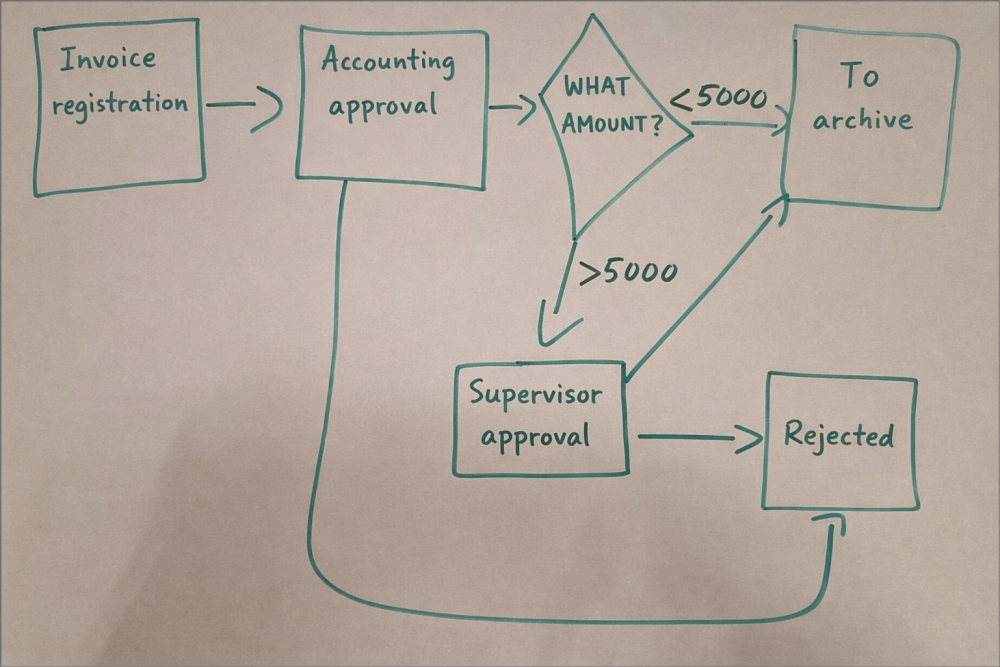
Photo of a hand-drawn diagram of the process
Description in AI Process Builder
The functionality is visible on the main page of the WEBCON Designer Desk tool. It is worth mentioning that the availability of the functionality depends on having additional AI Token licenses.

After pressing the Start with AI button, enter a prompt in the open text field, based on which the prototype will be generated – its length cannot exceed 5,000 characters. The structure of the prompt can be arbitrary but considering that it may affect the result generated by the AI Process Builder module, it is worth using one of the templates available online (in this case, it is the CONTEXT/TASK template). The prompt itself should be concise and meaningful, and the task description should preferably be contained in a single sentence.
CONTEXT: The process of registering and accepting a cost invoice.
TASK: Create a prototype of the process based on the attached diagram.
The content of the prompt used in the example discussed
After creating the prompt in the discussed example, the hand-drawn process diagram presented in the section above was added as an attachment. To add an attachment, click the Upload file button and select the appropriate document. The AI Process Builder module is capable not only of reading and interpreting information from image files, screenshots, or PDFs, but also from business documentation or excerpts thereof. AI Process Builder supports the most common text and image file formats, including .docx, .txt, .pdf, .jpg, and .png. In this case, the referenced diagram will be recreated as a workflow diagram in the Designer Desk tool.
To initiate prototype generation by the AI module, after entering the instruction and attaching the referenced file, simply click the Generate button. The generation process usually takes a few seconds; however, the exact duration largely depends on the specific prompt and the number of tasks that need to be performed.

Additional tips on creating prompts can be found in the following WEBCON BPS help section: Instruction Design
Generated prototype
After generating the prototype, a page with the workflow design opens. The AI assistant is visible in the form of a panel on the right-hand side, allowing you to continue the conversation by entering further prompts.
The hand-drawn workflow has been recreated by AI, including the selection of appropriate step types. In the chat window on the right, you can see a detailed description of the changes and settings that have been made.
NOTE: The generated prototype can be modified at any stage of the design process, both manually and using the AI Assistant. However, please note that entering a new instruction into the AI Assistant will cause the entire process to be regenerated. This means that to undo changes made by the AI Assistant, you must use the Undo button, which works deterministically and restores the previous version of the process. Undoing changes using a prompt may lead to undesirable results.

The created workflow contains brief descriptions of steps and paths. The AI assistant creates them based on the content of the prompt and the provided contextual materials, interpreting the description of the process goal, transition conditions, and expected results.

In addition to the workflow, the AI Assistant also created a form design containing proposed form fields, the type of which was selected according to the intended use predicted by the AI module. As in the case of the workflow, each form field has been appropriately described (this also applies to the field I want this tooltip for users, the content of which is then presented in the form of a tooltip on the form). For most Picker fields, the AI Assistant also creates data sources. For example, in the case described, the AI Assistant created the data sources “Currency”, “Invoice Status” and “Invoice Type” for the corresponding Dropdown choice fields.
However, it is worth noting that the AI Assistant does not create advanced elements such as actions or Item list configurations.

Further modification of the application
You can continue the conversation with the AI Assistant by providing further prompts to modify the created application prototype. The AI Assistant also provides suggestions on how to proceed with the application.
The AI Assistant window can also be opened by clicking on the AI icon in the top menu or by selecting the dedicated button on the prototype's home page. This option is also available for existing prototypes and can be used to automatically make changes to their configuration.

After opening the AI Assistant, the prompt should be entered into the text field. In this case, the following prompt was used:
Add the option to return the request to the “Invoice registration” step from any step of the approval process.
As a result, the AI Assistant created two new paths leading from the Accounting approval and Supervisor approval steps to the initial Invoice registration step. The paths were also given appropriate names.

Summary
The presented business case shows that AI Process Builder is a tool that primarily supports the analysis and conceptual design stages of the process. However, the model it generates is only a rough draft – it does not include advanced elements such as actions or Item list configuration. In practice, it works best as a starting point for further work in the WEBCON Designer Desk tool: it organizes requirements, proposes a process structure, and facilitates communication between the business environment and the implementation team.

+48 12 443 13 90