
Managing MultiSport cards
Applies to version: 2025 R1 and above; author: Lily Adamowicz, Kacper Świętek
Related documentation
A detailed description of the functionalities mentioned herein and their configuration can be found in the following sections of the WEBCON Help:
Getting started
This article presents an example of a simple process that supports MultiSport card management in an organization. MultiSport cards are a popular employee benefit in Poland that give employees access to various sports and recreation facilities, such as gyms, swimming pools, fitness clubs, and other partner venues. Although this specific benefit may not be available in every country, many organizations use similar programs, such as fitness passes, corporate gym memberships, or other subscription-based employee benefits.
The solution makes it possible to handle requests for issuing a new card, deactivate and reactivate cards, and monitor currently active cards. The process described in this article can therefore also be adapted to manage other recurring employee benefits that require registration, approval, activation, deactivation, and reporting.
An employee can register a request for a card for themselves or for an accompanying person. The person responsible for handling MultiSport cards can then verify the submitted data, order the card, confirm that it has been handed over, deactivate it, or reactivate it.
The application also uses data sources: a fixed values list and a dictionary source. These make it easier to manage the available card types and card recipients. As a result, selected configuration elements can be updated directly from WEBCON Portal, without the need to modify the workflow itself.
The solution can also support employee settlements, as it allows users to prepare a list of active cards and export the data to an Excel file.
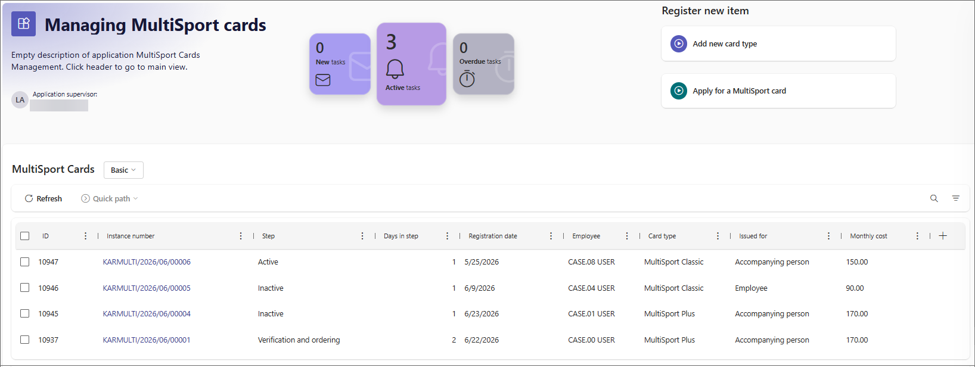
Fig. 1. MultiSport card management application
Data sources
First, a dictionary process named MultiSport – Dictionary was created. It is later used as a data source in the standard process. Dictionary values can be added and updated by users directly from WEBCON Portal.
On the dictionary process form, the user enters the name of the MultiSport card and then provides the monthly cost of the card for an employee and for an accompanying person. After entering the required data, the user saves the dictionary element by following the Save path.
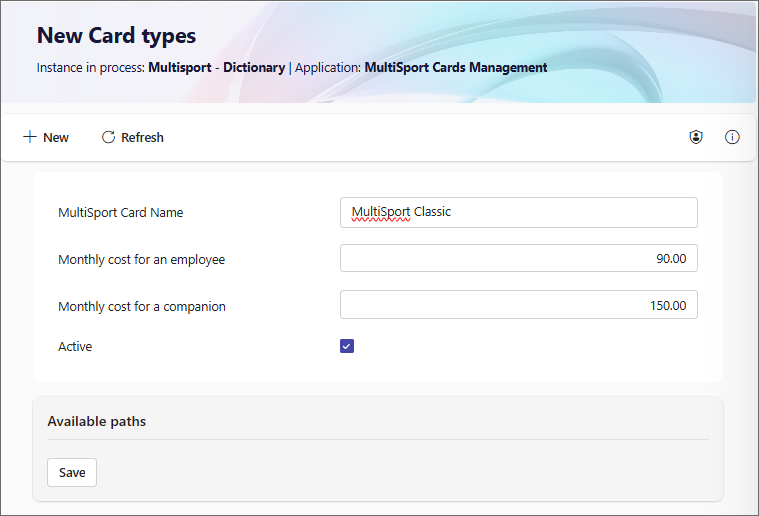
Fig. 2. Adding an element to the dictionary source
In addition, a fixed values list data source was created. It defines who the card can be issued for. In this example, the available values are Employee and Accompanying person.
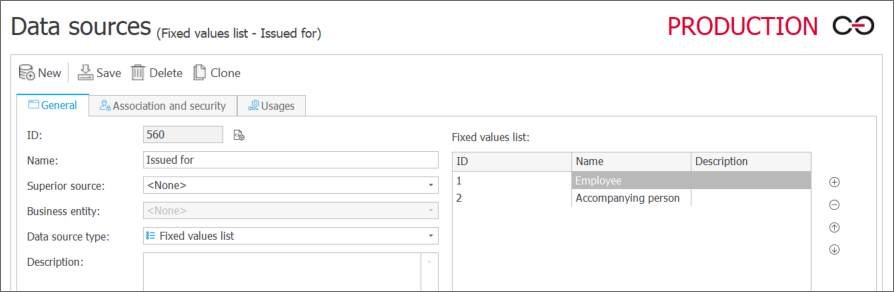
Fig. 3. Fixed values list with card recipients
Standard process
Next, you can create the standard process Managing MultiSport cards. The workflow designer consists of the following steps:
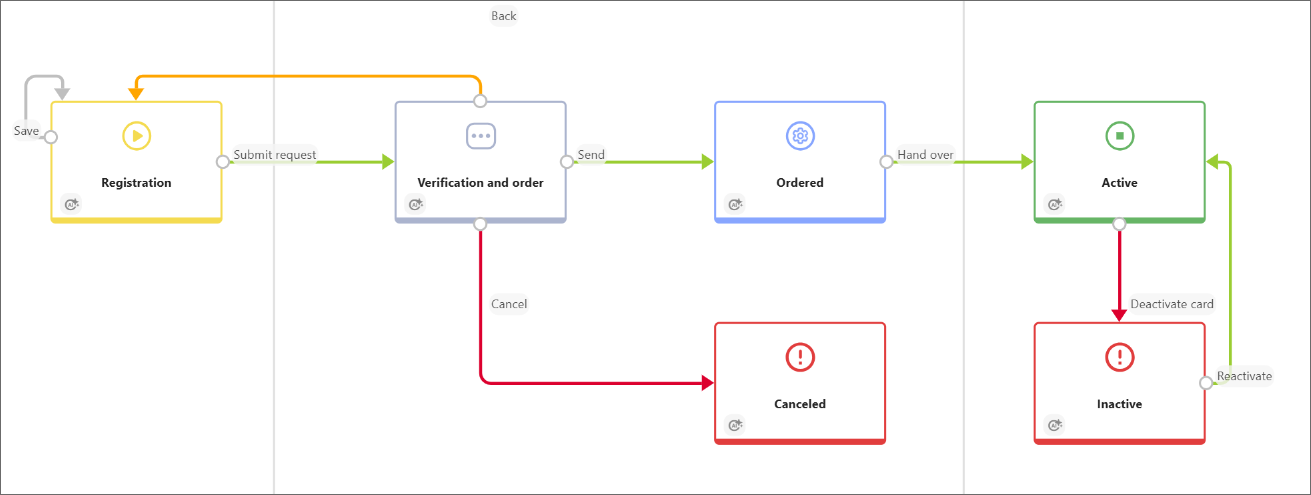
Fig. 4. Workflow designer
The following form fields were defined for the process:
|
Name |
Field type |
Description |
|
Basic information |
Group of form fields |
A section that groups basic information about the request. |
|
Registration date |
Date and time |
A field automatically filled in with the current date. |
|
Employee |
Person or group |
A field filled in by default with the currently logged-in user. It can also allow the user to select their subordinates. |
|
Card details |
Group of form fields |
A section that groups information about the card being ordered. |
|
Card type |
Choice field |
A choice field populated with values from the MultiSport – Dictionary source. It is used to set the value of the Monthly cost field. For this purpose, a form rule executed on value change was configured. |
|
Issued for |
Choice field |
A choice field populated with values from a fixed values list. It is used to set the value of the Monthly cost field. For this purpose, a form rule executed on value change was configured. |
|
Monthly cost |
Single line of text |
A field filled in based on the selected card type and the person for whom the card is being ordered. |
|
Valid from |
Date and time |
The date from which the card will be active. This field is completed by the person responsible for ordering the card. |
|
Card order |
Data row |
A field displaying a link to the MultiSport card ordering page. This field is visible on the Verification and order step. |
|
Your card |
Data row |
A field displaying a link to the MultiSport login page. This field is visible on the Active step.
|
|
Facilities |
Data row |
A field displaying a link to the list of MultiSport sports facilities. This field is visible on the Active step. |
|
I resign from the card |
Yes / No choice |
A field selected by the user who wants to resign from the card. After selecting it, the user follows the Deactivate card path. |
Process rules and constants
To support the MultiSport card management process, a process form rule was configured to set the value of the Monthly cost field depending on the selected card type and the person for whom the card is being ordered. The form rule uses two business rules that return the monthly cost for either an employee or an accompanying person. The returned value is then assigned to the field by the form rule.
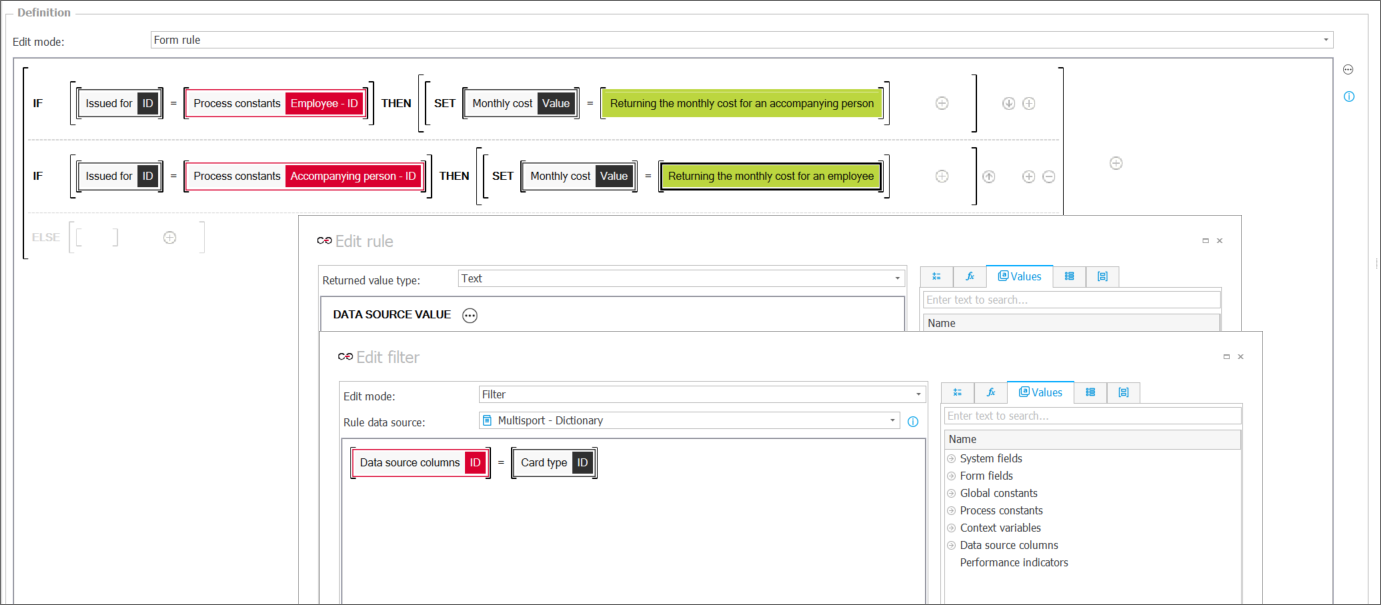
Fig. 5. Rules used in the process
The card recipients were defined using the process constants Employee – ID and Accompanying person – ID. These constants store values from the fixed values list that defines the available card recipients.
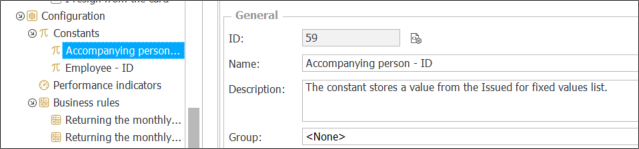
Fig. 6. Process constants
Workflow configuration
The following section shows the form configuration on the individual workflow steps.
Registration
On the start step, an employee can submit a request for a MultiSport card for themselves or for an accompanying person. The user selects the card type and indicates who the card should be issued for.
The Monthly cost field is filled in automatically based on the form rules defined for the Card type and Issued for fields. These form rules use process rules. An example rule for the Card type field, defined on the field’s Style and behavior tab, is shown below. A similar rule is defined for the Issued for field.
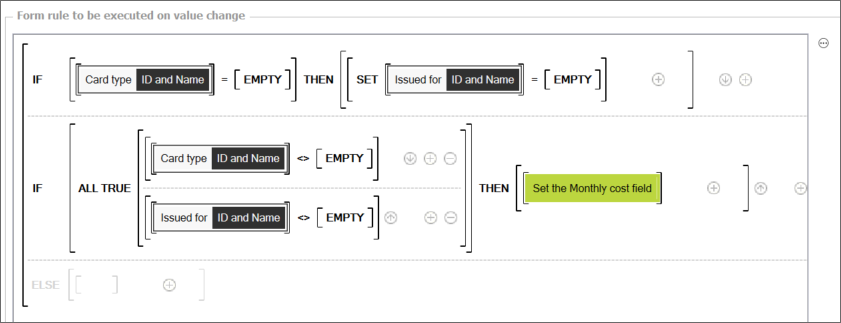
Fig. 7. Form rule for the Card type field
After completing the required information, the user follows the Submit request path to move the request to the next step.
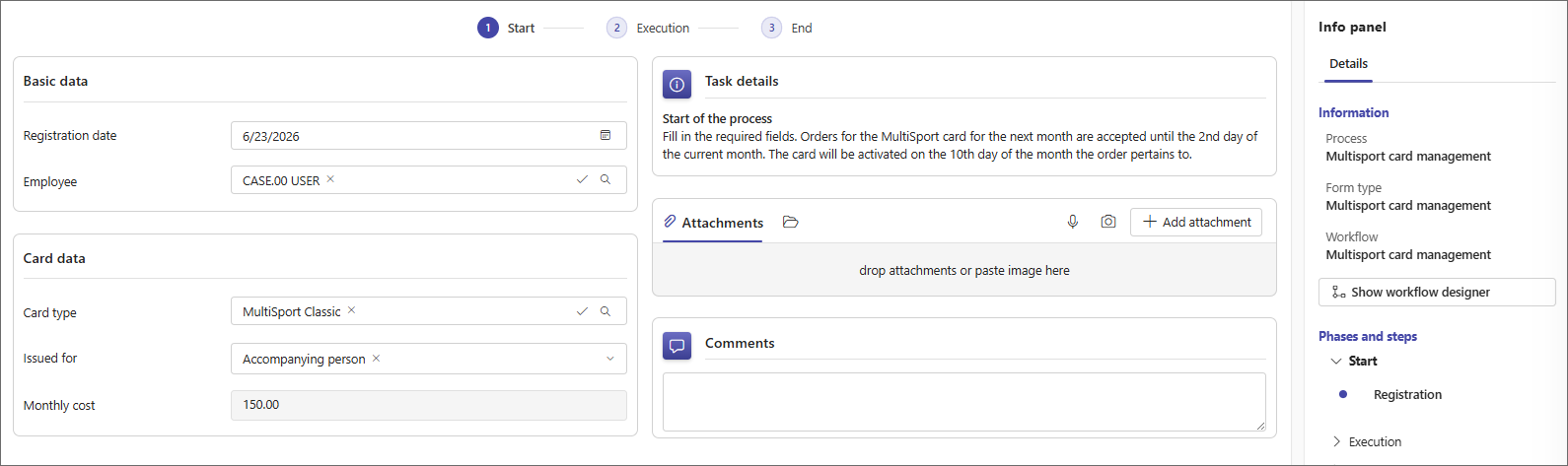
Fig. 8. Form displayed on the Registration step
Verification and order
On this step, the person responsible for ordering cards receives a task to verify the request and order the card. The form includes a Data row field with a link to the card ordering page.
The request can be returned to the start step, canceled, or moved to the next step Ordered.
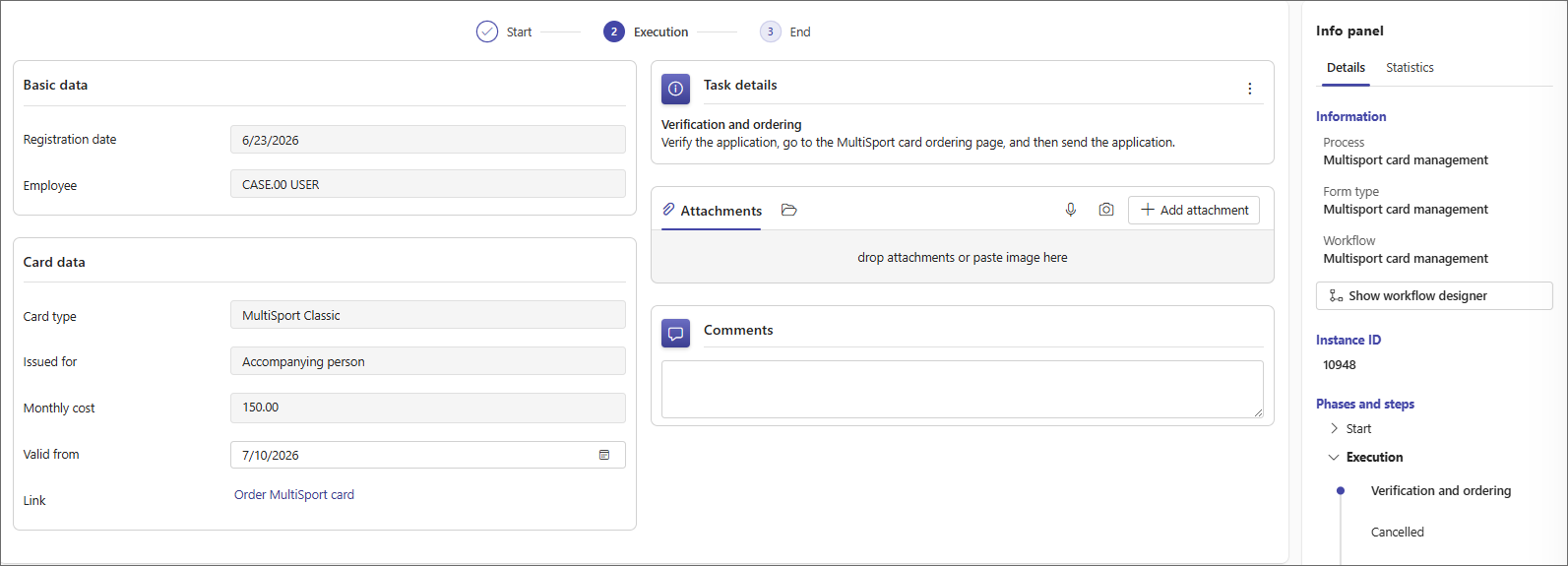
Fig. 9. Form displayed on the Verification and order step
Ordered
Ordered is a system step where the request remains until the card is delivered. After handing the card over to the employee, the person responsible for ordering cards follows the Hand over path to move the request to the next step.
Active
This step contains elements for MultiSport cards that have been handed over to employees and are currently active. The form includes two Data row fields with links to the login page and to the list of available sports facilities.
A Yes/No choice field was also added. It is selected by the user who wants to resign from the MultiSport card. The user then follows the Deactivate card path.
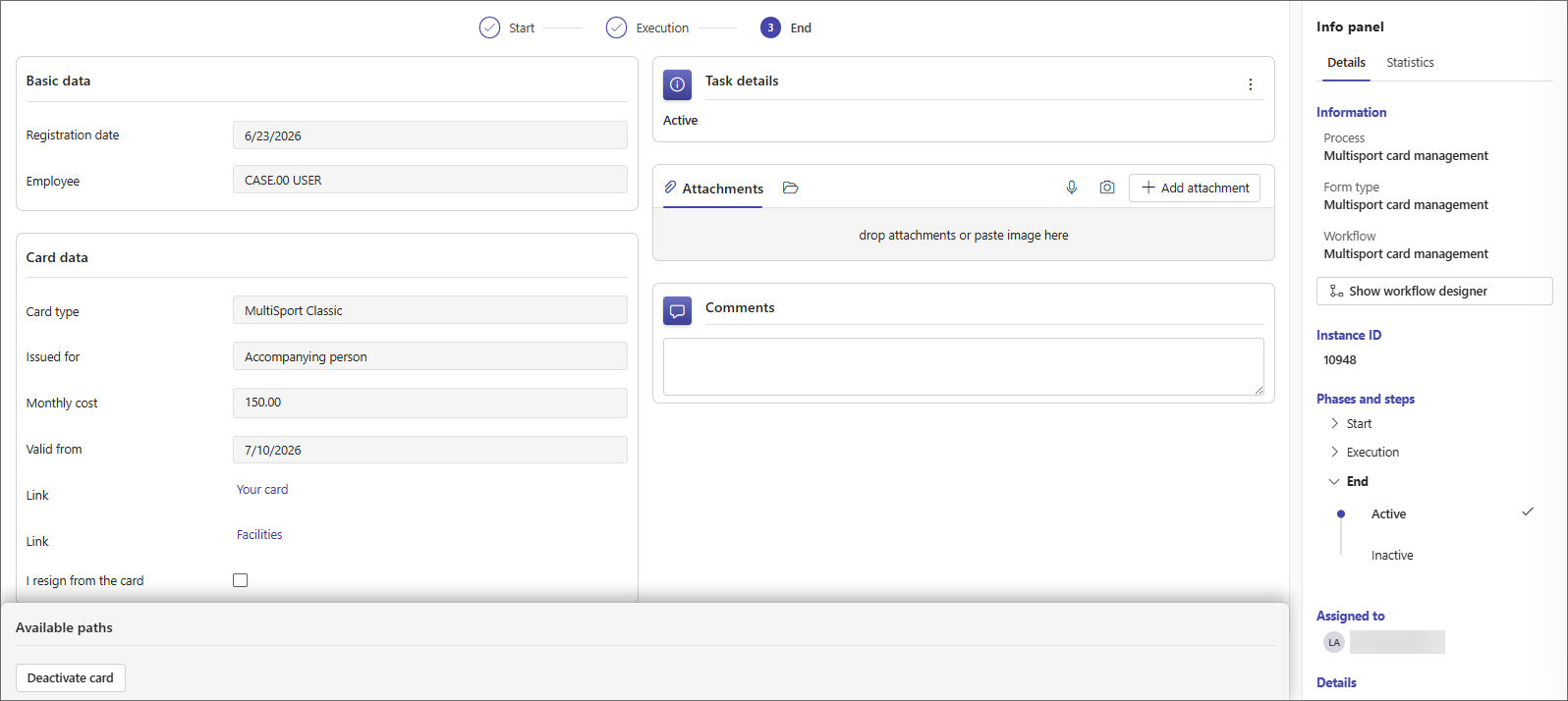
Fig. 10. Form displayed on the Active step
Inactive
Inactive is a final step for cards that are no longer active. The coordinator may be able to restore the card at the employee’s request. Following the Reactivate path reactivates the card.
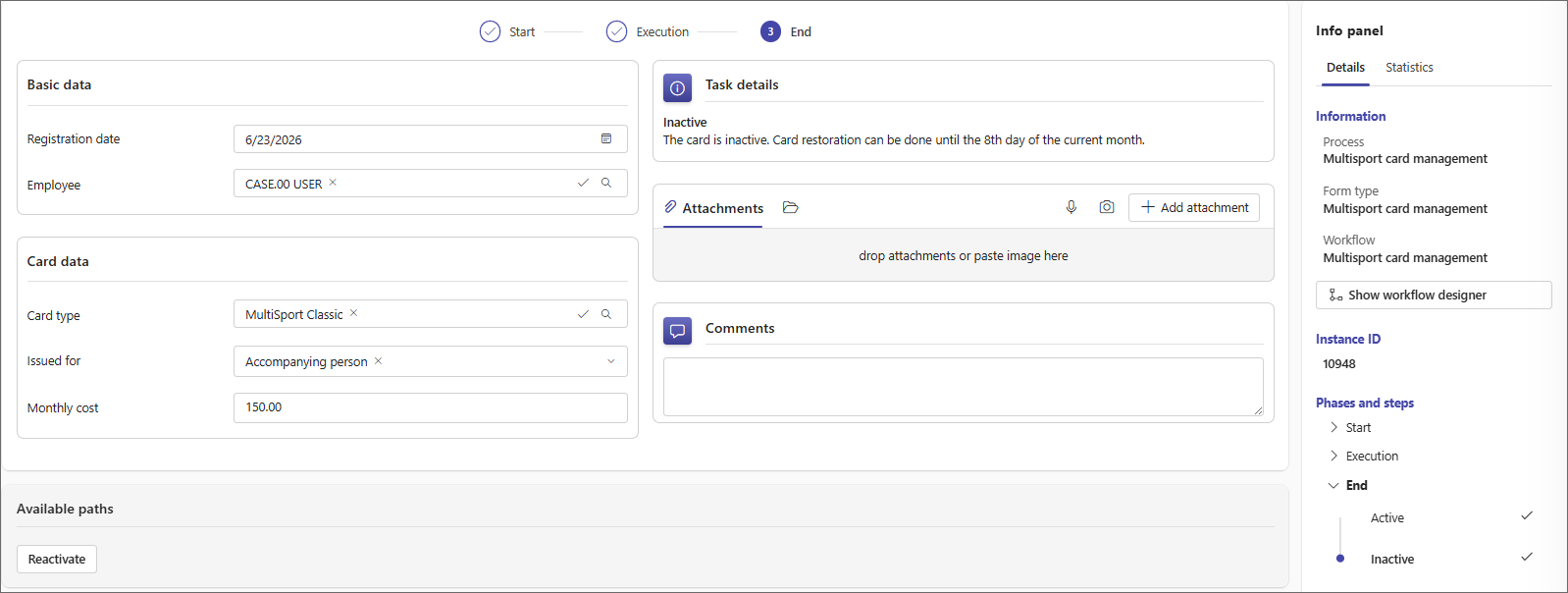
Fig. 11. Form displayed on the Inactive step
Summary
The process described in this article can improve MultiSport card management in an organization by structuring the handling of requests, activations, deactivations, and settlements. Depending on business requirements, the solution can also be extended to support other employee benefits that require a similar mechanism for submitting requests, keeping records, and reporting.

+48 12 443 13 90