
[external] A simple way to use colors in Webcon
External content by Katarzyna Filiks; March 16, 2026;
Webcon offers two main color themes — light and dark. One of the common dilemmas for developers is how to color elements such as group headers so that the color works well in both themes. There are several ways to achieve this.
One option is to choose a color that looks good on both dark and light backgrounds. With the help of AI, we found such options. However, there is a much better method that works for all color variations — using transparency.
In the attribute settings, set the background color using rgba, where the a value controls transparency.
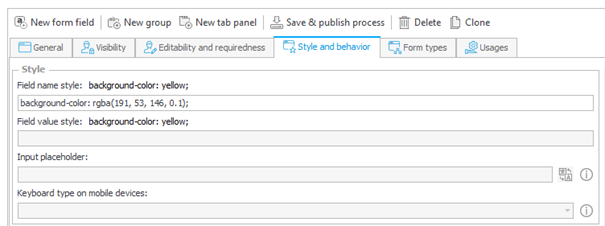
And that’s almost it. Almost, because depending on the Webcon version, the platform applies this value slightly differently in HTML classes.
For attribute group coloring, in version 2025, you need to pay attention to the repeated color in the CSS class
header-panel__header-name group-panel__header__name tooltip--trigger,

while in 2026 it appears in
span.webcon-ui.text.text__subtitle-2-strong.text__base

To avoid duplicating the transparent background, you should add an appropriate override in the global CSS. For example, in version 2026:
span.webcon-ui.text.text__subtitle-2-strong.text__base {
background-color: transparent !important;
}
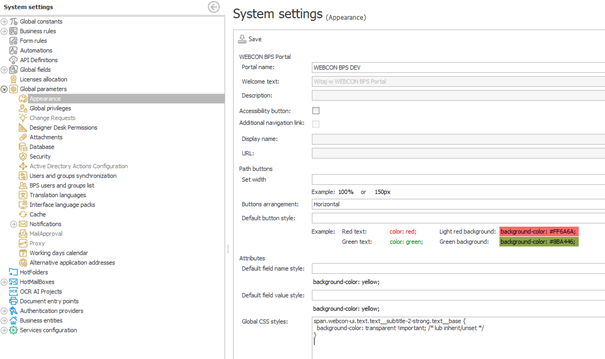
This way, any developer can apply transparent coloring using any color, consistently throughout the entire application.


When working with three environments, it can also be useful to visually distinguish the DEV and TEST environments from Production. This helps developers immediately recognize where they are working and reduces the risk of performing changes in the wrong environment.
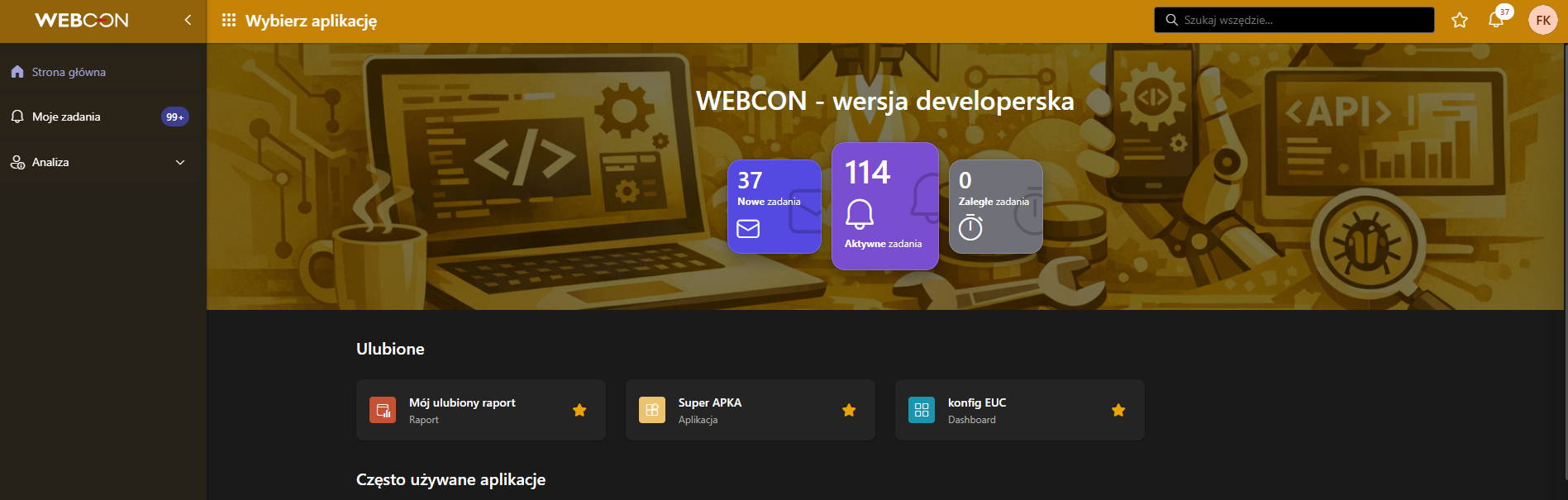
Here as well, you can apply a color with a transparency scale to the main menu elements. By using RGBA values with a low opacity, the interface remains clean, readable, and fully compatible with both light and dark themes.
For example, you can assign a slightly yellow-transparent background for the DEV environment

Because the opacity is low, these colors do not overpower the Webcon layout or conflict with the default theme. They simply add a light visual hint, making it immediately clear which environment you are working in.
You can apply the same approach to headers, navigation bars, or even the page background — anywhere a light, semi‑transparent color can enhance environment visibility without breaking UI consistency.
This technique keeps all environments visually consistent while still providing a clear, intuitive cue for users and developers.
You can also customize themes directly in the dedicated Theme Settings section available in the administration panel. Starting from Webcon version 2026, this area allows not only adjusting colors and visual elements, but also overriding global CSS styles that will be applied specifically within the selected theme.

Good luck!

+48 12 443 13 90