Home > Forum > Data sources > How can I identify functional changes made to a WEBCON application/workflow?

How can I identify functional changes made to a WEBCON application/workflow?
0

Hi Everyone,

I am trying to audit recent changes made to a WEBCON application and its workflows.

I can see entries in the History of Changes section, but many of the changes appear to be technical updates such as TSUpdate, SaveStamp, or DesignerData. It is difficult to determine which changes actually affected the workflow logic, business rules, paths, actions, forms, or configuration.

My questions are:

1. Is there a built-in way in WEBCON to see the exact functional changes made to an application or workflow?
2. Can WEBCON show what was changed (e.g., workflow path, action, business rule, form field, SQL query, etc.) and not just that a save occurred?
3. Is there a database table or report that can be used to compare workflow versions and identify meaningful changes?
4. How do you typically audit changes between two application versions?

For example, I can see changes in properties such as DesignerData that contain workflow diagram coordinates and connector paths, but I am looking for a way to identify actual business or process changes.

Any recommendations or best practices would be greatly appreciated.

Thank you!

MVP

Hi Dheeraj,
Only thing that is provided in Designer Studio Legacy(there is a new web one coming soon) is that History of Changes - the best one too look at is the one at Process level, not on Application.
I'ts not great, but you can sometimes see there some tips what could have been changed - it's easy to check if update was for example only for permissions.

You could try to use ChangeRows table to make some custom searches/reports - they will describe what have changed, but i'm not sure if you'll get how it changed. (db docs will come in handy*)

When it comes to auditing, we're avoiding any manual work on PROD environment and only few users have access to that environment, if there is a change in the application it goes full process DEV -> TEST -> PROD, so there are only imports in most cases (we do have some exceptions, like modifying reports, but under a strict rule that it has to be applied on all environments manually at same time). To ease out importing DEV -> TEST -> PROD you can take a look at importing applications via API endpoint**.

With standardized process, and written changelogs for each versioned package - you know what changed. If you need business description - there is currently no AI for that 'yet', you'll have to create them.

* https://developer.webcon.com/2026/resources/db/
** https://community.webcon.com/posts/post/importing-applications-using-the-public-api/461/3

WEBCON

Hi Dheeraj,

To add to Maks's response, here is some additional information which I hope can be useful for you:

Ad 1. and 2.
the History of Changes in Designer Studio *does* show every change that was made to a process - rules, actions, form fields etc.
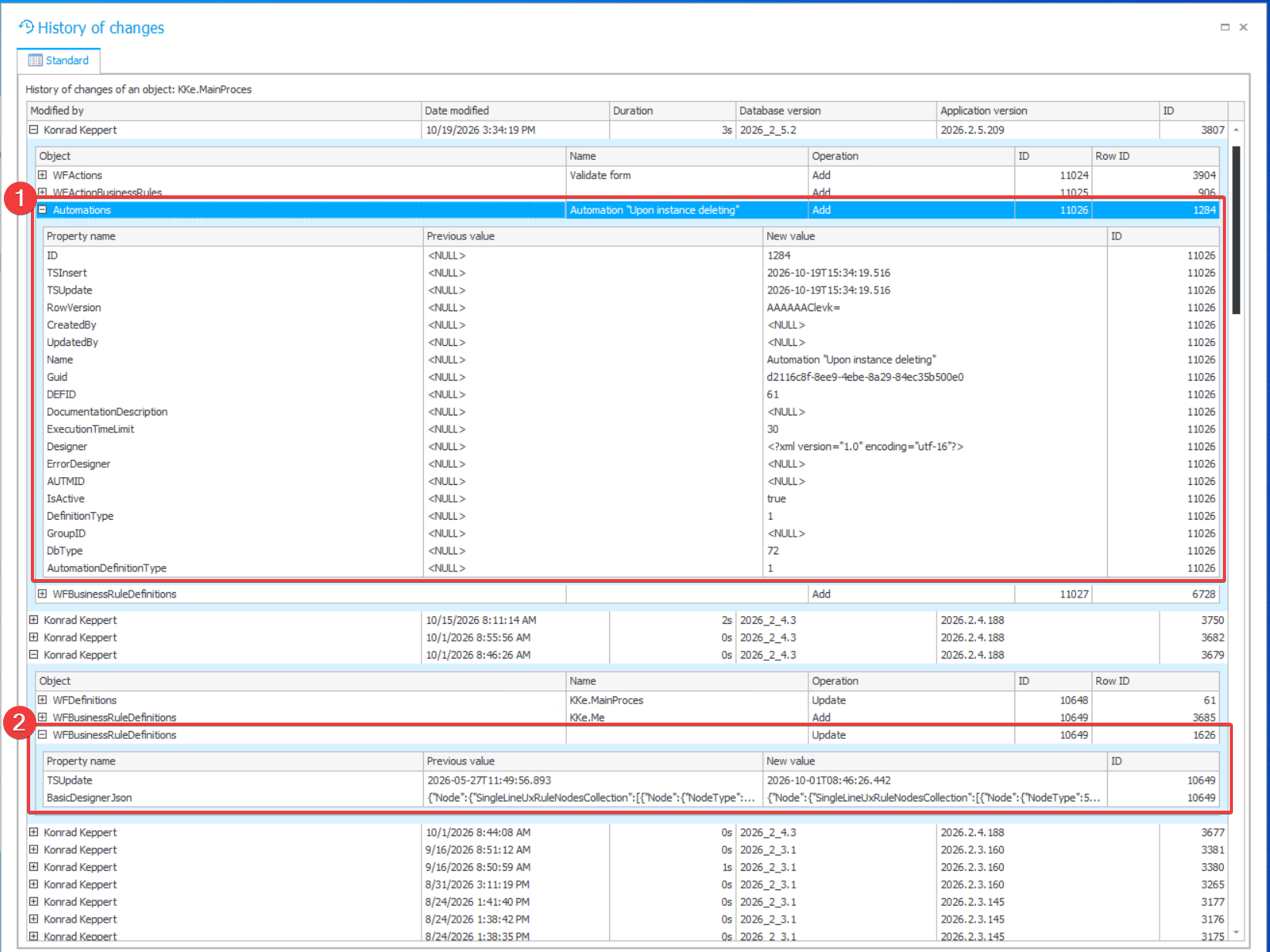
Each top-level row is one save made to a process, then you have to expand that row to see changes made on that particular save. If you can't see any meaningful changes, then probably there were no modifications on that save.
See attached screenshot as an example: we can see a new automation being added (1) and a business rule being modified (2).

Ad 3.
If you have access to content database, then every save made to a process (both Studio saves and BPE imports) can be seen in tables:
- dbo.HistoryImports (general info, such as platform version, user login, save/import flag and duration)
- dbo.HistoryImportEntities (guids of objects that were saved - in relation to HistoryImports)
- dbo.HistoryImportDatas (detailed information of changes made on save in each table + JSON with changes applied on save)
Keep in mind that all of these tables are used to display History of Changes, there is no more information that you can see in Studio.

Other tables such as dbo.ChangeRows, dbo.ChangeDetails mentioned by Maks are showing only global configuration changes (eg. data sources, HotMailBoxes, global permissions). They do not store changes made to applications/processes.

If you have ideas how to improve the History of Changes view, I encourage you to share your thoughts/ideas on https://community.webcon.com/user-voice

MVP
In reply to: Konrad Keppert (WEBCON)

Hi Dheeraj,

To add to Maks's response, here is some additional information which I hope can be useful for you:

Ad 1. and 2.
the History of Changes in Designer Studio *does* show every change that was made to a process - rules, actions, form fields etc.
Each top-level row is one save made to a process, then you have to expand that row to see changes made on that particular save. If you can't see any meaningful changes, then probably there were no modifications on that save.
See attached screenshot as an example: we can see a new automation being added (1) and a business rule being modified (2).

Ad 3.
If you have access to content database, then every save made to a process (both Studio saves and BPE imports) can be seen in tables:
- dbo.HistoryImports (general info, such as platform version, user login, save/import flag and duration)
- dbo.HistoryImportEntities (guids of objects that were saved - in relation to HistoryImports)
- dbo.HistoryImportDatas (detailed information of changes made on save in each table + JSON with changes applied on save)
Keep in mind that all of these tables are used to display History of Changes, there is no more information that you can see in Studio.

Other tables such as dbo.ChangeRows, dbo.ChangeDetails mentioned by Maks are showing only global configuration changes (eg. data sources, HotMailBoxes, global permissions). They do not store changes made to applications/processes.

If you have ideas how to improve the History of Changes view, I encourage you to share your thoughts/ideas on https://community.webcon.com/user-voice

Hi Konrad,
thanks for your update! I have new stuff to check out in the database ;)
Glad you've filled gaps in my answer.